Ex 1.0 — Setup Sprint ⚙️
Goal: by the end, your full environment works and you've sent your first message from n8n. Mode: individual, everyone on THEIR OWN machine and THEIR OWN instance.
Why a 'setup' exercise?
Because connecting accounts is THE first real obstacle of any automation. We treat it as an exercise, not a chore: checkpoints to guide you, peer help, and a box on the progress board once you're done.
CP1 — Logged into your instance
- Grab your login card (handed out this morning): your URL looks like
s17.91-98-230-24.sslip.io. - Open it in your browser, log in with the email + password from the card.
- You should see n8n's empty canvas.
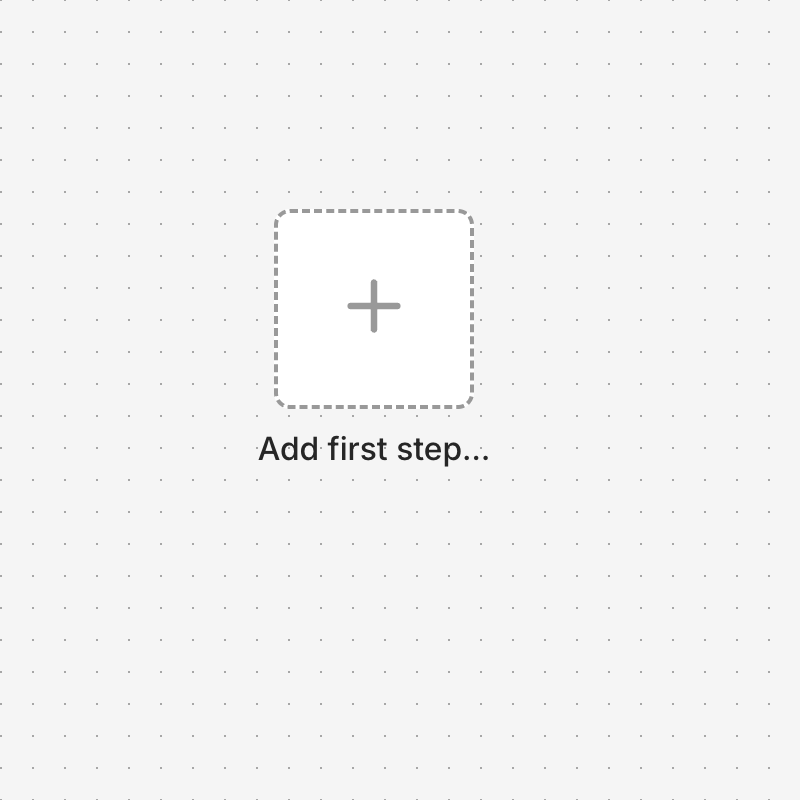
✅ Done when: you see "Start from scratch" / an empty canvas. → CP1.
Hint 1
Password rejected? Check you haven't mixed up l (lowercase L) and 1 (one). The cards are printed in a fixed-width font on purpose — compare character by character.
Hint 2
Still stuck after 2 tries? Don't push it: raise your hand, there are backup instances (s51 to s55).
CP2 — Your first workflow: a message in Discord
First, join the workshop's Discord server: open the invite link on your login card, create a free Discord account if you don't have one. In the sidebar, find your channel #sNN — your number is on your card (s17 → #s17). Everything your automations send this week will land there.
Then we'll build the smallest possible workflow: 2 nodes, triggered by hand.
- Click + Add first step → search
Manual Trigger→ add it. - Click the + to the right of the trigger → search
Discord→ choose Send a message. - In the Discord node: Credential field → select
Workshop Discord(already installed for you). - Server: pick the workshop server from the list · Channel: pick your
sNN· Message: whatever you want (keep it polite, the whole class can read it 😄). - Click Execute workflow (at the bottom).

✅ Done when: your message shows up in your #sNN. → CP2.
Hint 1
Discord node red? Open it, read the first line of the error (reflex #1 on your card). "Unknown Channel" or "Missing Access" = wrong server or wrong channel: reopen both lists and pick the workshop server, then YOUR sNN. Empty list? Click the small circular arrow (refresh) next to the field.
Hint 2
No Workshop Discord credential in the list? You might be on the wrong instance — double-check the URL on your card. Otherwise, raise your hand: we'll reinstall it in 1 minute.
CP3 — Google Sheets responds
- New workflow (menu → New workflow).
- Add
Manual Trigger, then aGoogle Sheetsnode → Get row(s) in sheet. - Credential:
Workshop Google(already installed) · Document: By URL → paste the link to YOUR sheet (the "Ma feuille Google" button on your portal card) · Sheet:Feuille 1. - Execute workflow: the OUTPUT panel should show a few test rows.
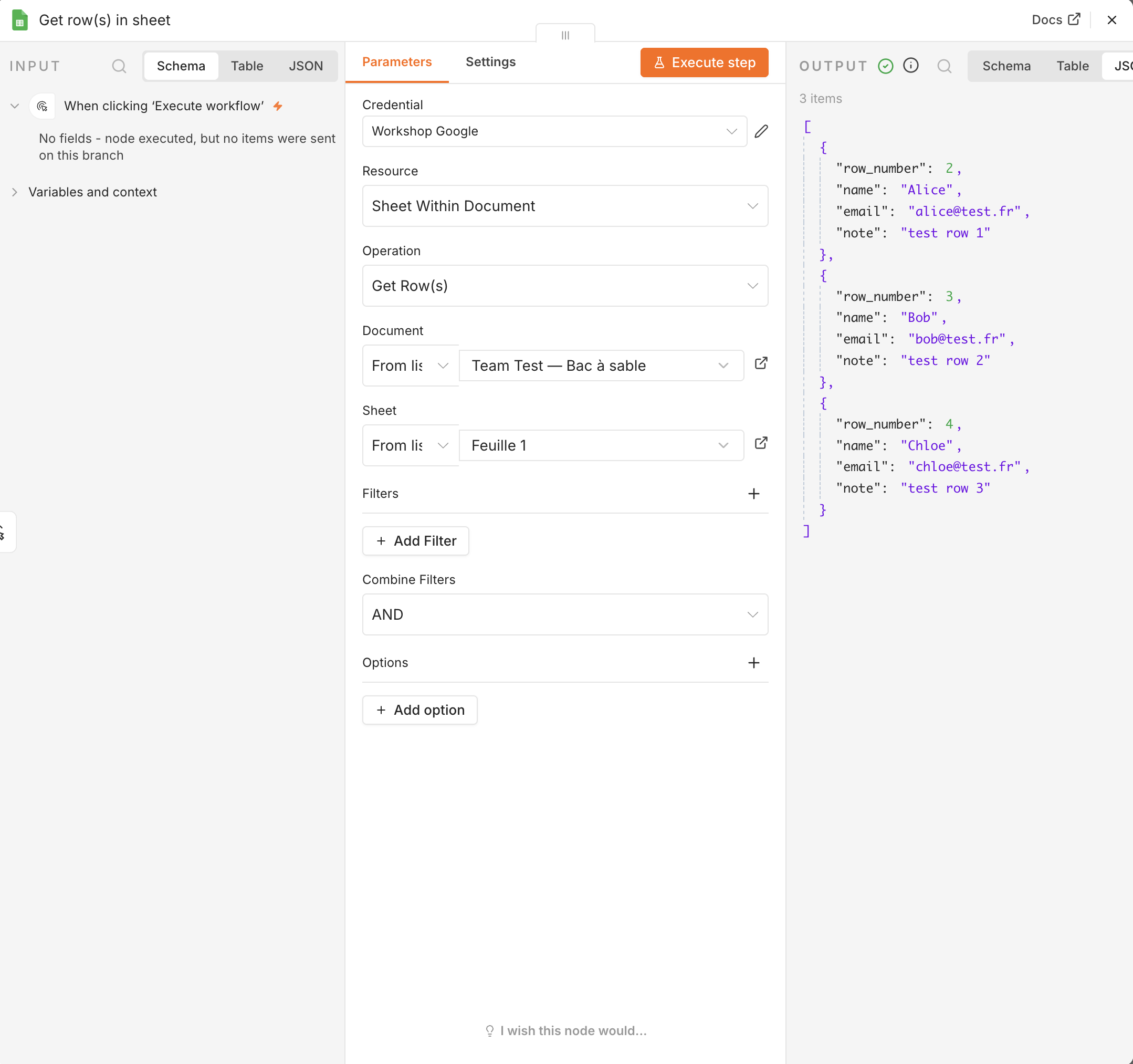
✅ Done when: you see data in OUTPUT. → CP3.
Hint 1
Error on the document? Check that you pasted the link to YOUR sheet (portal card), then click the small circular arrow (refresh) to the right of the Sheet field. Still nothing → wrong instance or missing credential: raise your hand.
CP4 — Check your AI credential
- In the left-hand menu: Credentials.
- You should see:
Workshop Discord,Workshop Google,Workshop OpenRouter.
✅ Done when: all three are there (don't open them, don't edit them — you'll need them all week). → CP4, exercise done: check it off on the progress board, then go help someone or move on to Ex 1.1!
Done early?
You can help others out (rule 1: without touching keyboards). Or explore the canvas: double-click a node, see what it offers. You can't break anything: it's YOUR instance.